TABLE OF CONTENTS
- 1. Open the diversion menu
- 2. Choose the diversion mode and create the rule
- 3. Set the condition and destination number
This guide explains how to set up a call diversion directly from the Setera OneCloud mobile app, without needing to access the web portal.
Note: diversions set from the app are synced in real time with all other clients (web and desktop).
1. Open the diversion menu
- Open the Setera OneCloud mobile app.
- Swipe from right to left, using the side tab on the right as a guide, to open the right-side menu.
- In the menu, tap the Diversion setting. If no diversion are currently active, this will show None.
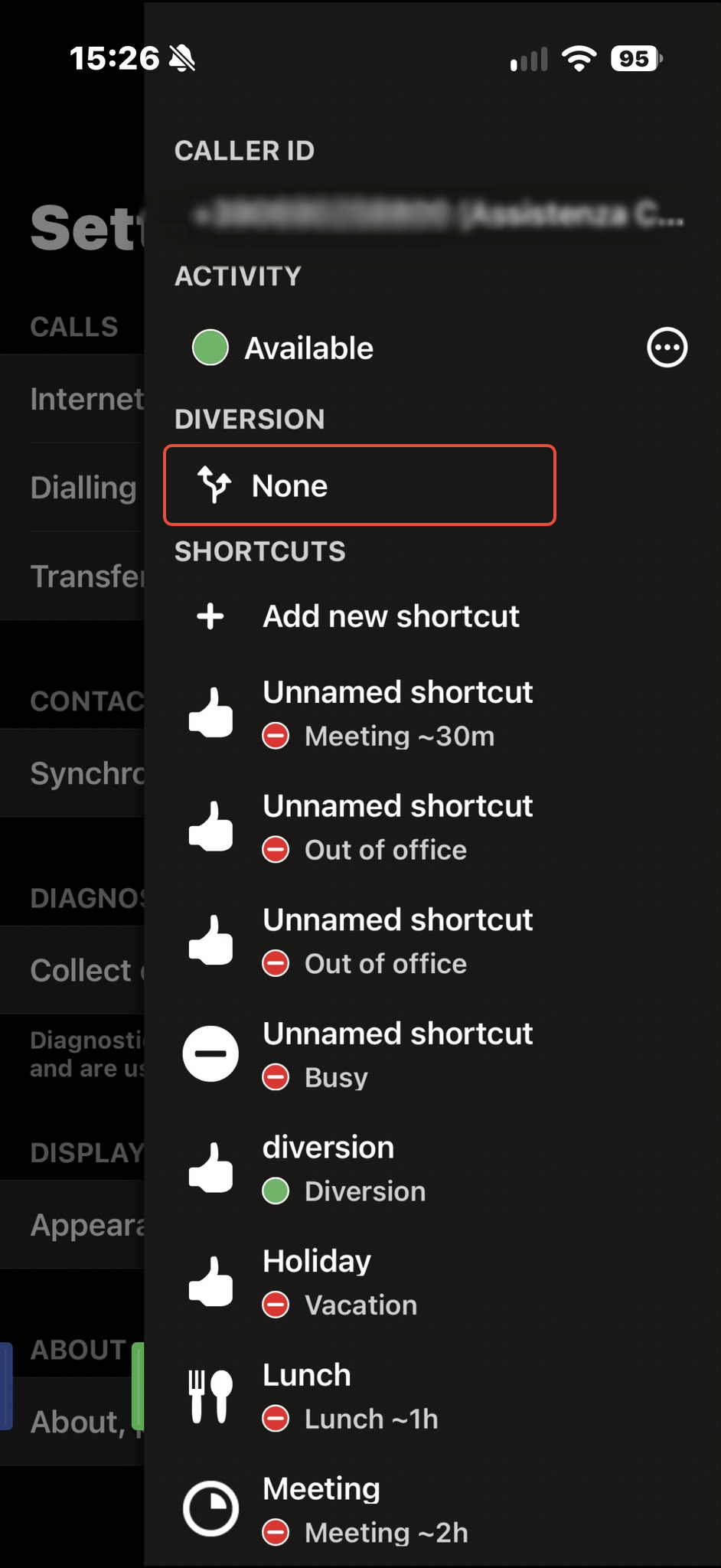
2. Choose the diversion mode and create the rule
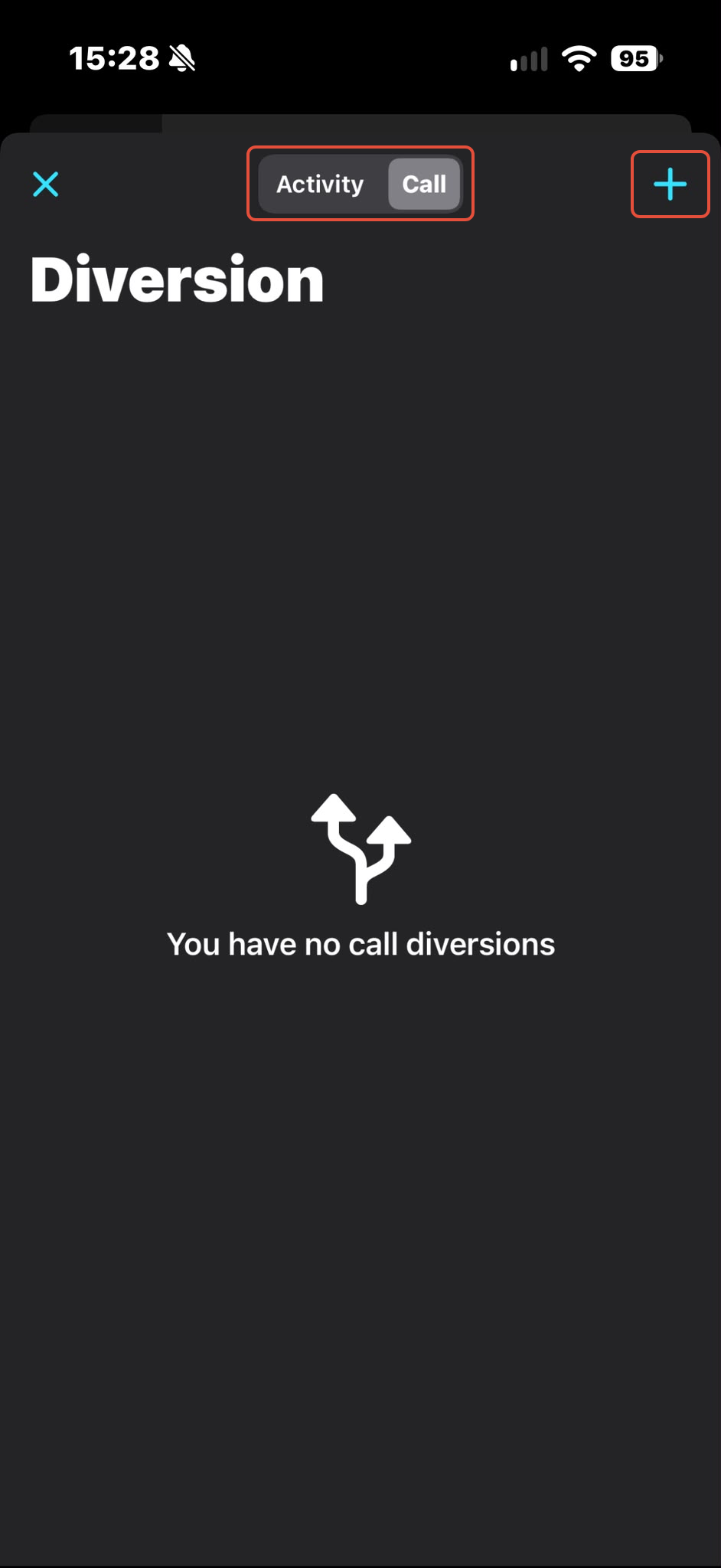
- From the top selector, choose between:
- Activity — diversion based on activity status;
- Call — diversion based on specific call scenarios.
- Tap the + icon to create a new diversion.
3. Set the condition and destination number
- Choose the condition that should trigger the diversion (e.g. Always, No Answer, Busy, or an activity-based condition).
- Enter the number to forward the call to, or select it from your contacts.
- Confirm by tapping the checkmark icon in the top right.
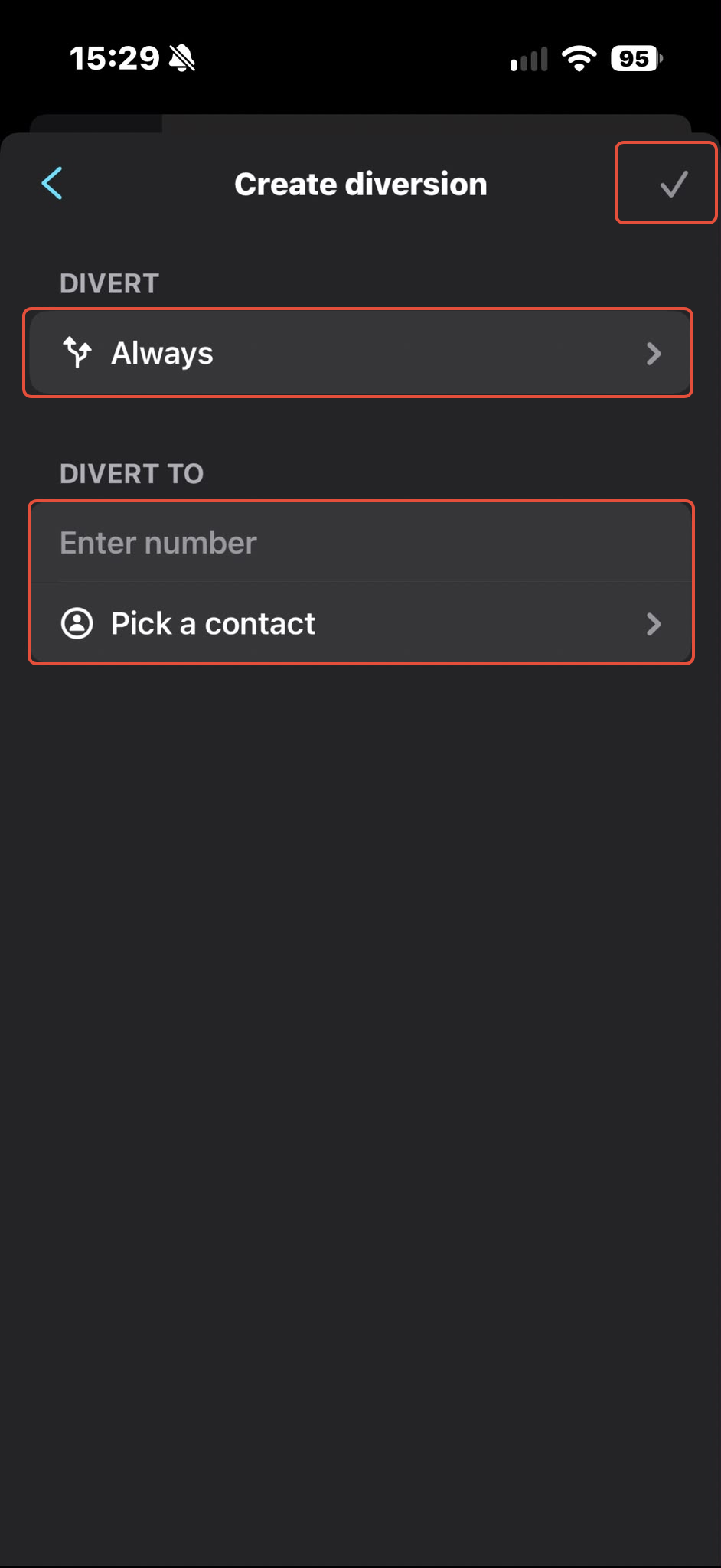
Example: the image above shows an unconditional diversion (Always), which always forwards the call to the set number.
Was this article helpful?
That’s Great!
Thank you for your feedback
Sorry! We couldn't be helpful
Thank you for your feedback
Feedback sent
We appreciate your effort and will try to fix the article